Decorate
Decorate it your way.
The same day looks different once it has your touch. Stick on memo pads, pick stickers, and use a favorite photo as the cover. What you decorate shows up in PDFs and prints too.
Background
Pick a background to lay under the paper.
Classroom sunlight through the blinds, an afternoon at a café table by the window. The paper stays the same; only the background and the light beneath it change. At dusk, it slowly shifts to evening light from a desk lamp or a pendant.
Choose a background in Settings in the iPhone · iPad · Android apps. It's set per device, so your iPad can sit on a café table while your iPhone stays on a school desk. On Mac · Windows, your computer's own desktop shows behind the paper.
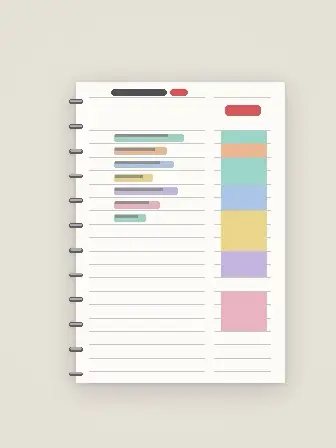 BasicWarm gray
The first background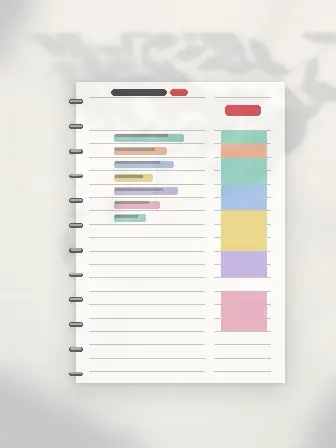 White DeskLeaf shadows
A table lamp at night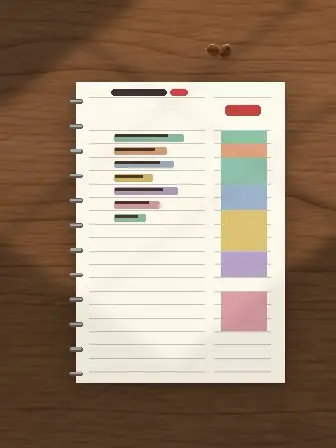 Café TableWindow sunlight
A pendant light at night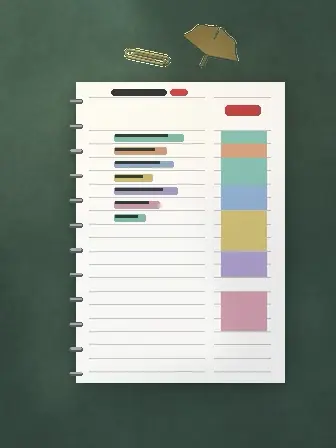 LibraryTall windows
A banker's lamp at night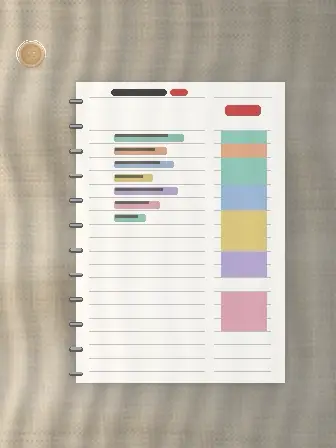 LinenDaylight through curtains
A candle at night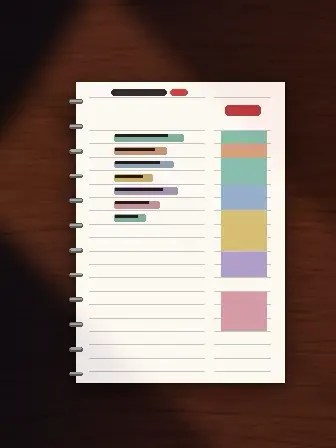 Night DeskSunset glow
A desk lamp at night
Memo · Sticker
Stick on memo pads and stickers.
Open the memo pad and sticker drawer, stick them anywhere on the page, peel them off to move them, and write on the memo pads.
- Memo pads — Six colors, lined · grid · dot patterns, and cat · bear · bunny pads. Writing sits on the lines.
- Scene pads — Toast · Hedgehog · Picnic · Snail Mail · Watering. Toast peels off in the shape of the bread, and the writing stays inside the bread too.
- Stickers — 24 stickers, plus the friend stickers Spiring · Saksak · Burya · Saegeun · Pallang.
- Task ↔ memo pad — Turn what you wrote on a memo pad into tasks, or a task into a memo pad.
Mac · Windows — Stick memo pads in the empty space to the left of the planner window too. The top area is ‘Always Shown’ on every page; the bottom is ‘Today's Notes’, shown on that day only. A shortcut (Mac ⌃⌥⌘N · Windows Win+Alt+N) lets you jot something down even while you're in another app. iPhone · Android phones — Pinch the page with two fingers to see the memo pads on the left. iPad · Android tablets — Tap the [Memo] tab above the book to open that day's memo page.
Cover
Make a favorite photo the cover.
Every planner has a cover. Just pick a color, or crop a photo and make it the cover.
Decorate Cover
Choose a background from colors · patterns (lined · grid · dot) · photos, then set the title's handwriting · size · position, a label and a washi-tape name tag.
Cover editor
Collage up to 8 photos (with frames like templates and instant photos), and drag the title anywhere. Add text boxes, memo pads and stickers too.
Diary photos
Put photos in your diary on iPhone · iPad · Android. Pick a frame like a ticket, a picture frame or an instant photo, and write a caption under it.
Photos stay on your device — Photos are shrunk on that device, and details like the location and the camera are removed before they go into your planner.
Handwriting
Handwriting and dates, your style.
Three handwriting styles
Clean · Basic · Cute — pick the handwriting on the paper. What you've already written changes right away.
Eight date styles
20261025 SUN · 2026.10.25 · Oct 25, 2026 (Sun) … Pick the style of the big date (DATE) for each planner.
Handwriting by pen
Write by hand right on notes and memo pads: Apple Pencil on iPad, S Pen on Galaxy Tab, and the writing pen on computers and phones.
Pens · Colors
Highlighters and colors, however you like.
Name your highlighters, set their colors and order, and make up to 12. Pick from nine colors each day, and TOTAL TIME, the weekday and D-day colors change with it.
Phones — Take a highlighter out of the Pencil Case at the bottom of the screen. The Pencil Case and the top bar can swap places.
More
Ready to turn today's page?
Free · Mac (macOS 14 or later) · Windows 10 · 11 · iPhone · iPad (iOS 17 or later) · Android 8.0 or later